
DNS Custom Rules Explained: What Are They And What Can They Do?
Custom DNS rules let you override what any domain resolves to. Here's how block, bypass, and redirect rules work, and what you can actually do with them.

DNS custom rules mean different things depending on where you read it. A filtering tool, a router, and a comparison article each use the term for something else.
This guide is for anyone choosing or running a DNS filtering setup. It clears up what DNS custom rules are, the four things they can do, and how a resolver decides which rule applies so you can tell what's fluff from what actually changes how your network behaves.
The short version: a DNS custom rule lets you decide how a specific domain name resolves, instead of accepting whatever your ISP's resolver hands back. That control is what lets you block a threat, force an exception, or route traffic somewhere else, all without touching the devices themselves.
What Is a DNS Custom Rule?
A DNS custom rule is an instruction you set that changes how a domain resolves, overriding the answer that public DNS (typically your ISP) would normally return. You pick the domain, you pick the outcome, and the resolver applies your rule before it falls back to the standard lookup.
If you have ever edited a hosts file to point one domain at one IP address, you already understand the core idea.
A DNS custom rule is the same trick, with three upgrades:
- It runs in the cloud rather than on a single machine, so it follows you across devices
- It supports wildcards, so one rule can cover a domain and everything under it
- It scales well past a hosts file, into the thousands of entries if you need them.
That is the clean definition. It also happens to be incomplete, because the term means different things depending on where you saw it.
What People Actually Mean by DNS Custom Rules
"DNS custom rules" is a label that three different kinds of products have each claimed for their own feature, and those features solve different problems.
| What people call "DNS custom rules" | What it actually does | Where you'll see it |
|---|---|---|
| Managing DNS records | Authors A, MX, or CNAME records for a domain you own and publishes them to the world | Your registrar or web host |
| Local hostname overrides | Points a domain at an IP inside your own network, so internal devices and services resolve | Home and prosumer network firewalls, local DNS |
| DNS filtering and overrides at a resolver | Blocks, bypasses, or redirects what a resolver returns for any domain you query | DNS filtering and security services, customizable resolvers, enterprise platforms |
It’s important to first work out which one you are dealing with, because authoring A records and blocking groups of sites have almost nothing in common.
The rest of this guide is about the last row, where a rule can override the answer for any domain you query, not just one you own. That is the version worth understanding in depth.
What Can a DNS Custom Rule Do? 4 Things
A DNS custom rule has four possible actions: block, bypass, redirect, and geo rules. Block and bypass are table stakes, the allow-or-deny pair that almost any tool offers.
Redirect and geo rules are where it does things a plain blocklist cannot, so they get most of the room below.
1. Block
A block rule stops a domain from resolving, which cuts off access to it from any device or user to which the rule applies. The obvious use cases are to kill ads, malware domains, adult content, or anything else you do not want loading, which protects every device on the network at once.
This can be via category filters, Service-level for individual apps/tools, or specific domains. The resolver checks the DNS requests coming from your devices, refuses to answer the ones you blocked, and logs each one.
2. Bypass
A bypass rule tells the resolver to let a domain through, letting it resolve normally even when a broader rule would otherwise block it. Think of it as an exception.
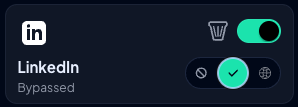
Say you block an entire category like social media, but you still need access to LinkedIn. Setting a bypass rule for LinkedIn lets it through while the rest of the category stays blocked.
One catch is that big sites span many domains, so bypassing linkedin.com alone can leave it half-loading. This is where prebuilt Services help, a single toggle that covers every custom domain a site uses, so you bypass the whole thing at once instead of hunting domains one by one.
3. Redirect
A redirect rule sends a domain's traffic through a location you pick instead of letting it reach the domain's real address. When your device looks up that domain, the resolver routes it through a proxy exit rather than to the true destination.
This is the action that most filtering tools, except for Control D, do not offer. You can route a specific domain's traffic through one of 100+ proxy locations across 60+ countries, which changes where you appear to connect from without running a separate VPN app. In Control D, this is the Traffic Redirection feature.
Example:
Say you want traffic to a few specific domains or apps exiting through Germany while everything else resolves normally. A redirect rule sends each of those domains out through a German proxy server, and to the sites on the other end, the traffic looks like it came from Germany. You are making a per-domain routing decision at the DNS layer, not flipping your whole connection through a VPN.

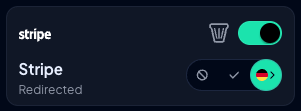
Control D lets you set redirect rules for domains and individual Services.
4. Geo Rules
A geo rule looks at where traffic is going or coming from, rather than the domain name itself. By using special characters, geo rules can match on the country a query resolves to (the destination), the country it came from (the source), or the network an IP belongs to (its Autonomous System, or AS), so a rule can target one provider rather than a whole country.
That covers cases like:
- Block any query that resolves to an IP in a country you have no reason to talk to
- Redirect anything that does not resolve inside a country you trust
- Bypass queries that come from your own office's country, while filtering the rest
- Block traffic to a specific hosting provider by its AS number
Example:
A company does no business in Russia, China, or Iran, so it blocks every DNS query that resolves to an IP in those countries. Malware that tries to reach a server hosted there gets no answer, and there is no domain list to keep updated. Control D offers this capability as Geo Custom Rules.
Together, redirect and geo turn custom rules from a filter into something closer to a routing layer. That is the gap between override-style rules and the block-only model most tools ship with.
How the DNS Resolver Decides Which Rule Applies
Once you have more than a couple of rules, the same DNS query can match more than one of them, so which one wins?
The governing principle is most-specific-match-first, meaning the DNS resolver applies the narrowest matching rule.
Example:
Say you write a wildcard rule blocking live.com and every subdomain, then a more specific rule allowing outlook.live.com. The specific rule wins, so outlook.live.com resolves while the rest of live.com stays blocked. Wildcards cover a domain and everything under it, but a more specific rule lets you make exceptions.
Scope order is the second layer. Custom rules are checked before category filters and any default behavior. So if a filter would block something your custom rule allows, the custom rule wins.
The exact order varies by product, so verify it against your solution's documentation rather than assuming. For one concrete implementation, Control D's advanced rules guide walks through how Custom Rules, Service rules, Filters, and the Default Rule are evaluated in sequence.
What Custom DNS Rules Are Actually Used For
Those four actions mentioned above (block, bypass, redirect, and geo rules) are the building blocks. In practice, people combine them into a handful of use cases.
1. Blocking What You Don't Want
The everyday case, and the reason most people reach for custom rules at all. A block rule, optionally with a wildcard to cover a whole domain, and those requests stop resolving. Nothing groundbreaking, but it is where most people start.
2. Allowlisting What You Trust
Flip the logic around. Set the default to block every domain, then configure bypass rules only for the ones you approve. A device can then reach your approved SaaS tools and nothing else, which is how you lock down a kiosk or a point-of-sale terminal. Instead of chasing an endless list of sites to block, you keep a short list of what to allow.
3. Resolving Internal and Private Hostnames
When you route a network through a DNS filtering resolver, any internal hostname that does not exist in public DNS can stop resolving. In an Active Directory environment, that breaks things fast since domain controllers use hostnames the public internet has never heard of.
A redirect rule, this time aimed at an internal IP, fixes it. You recreate those hostnames as custom rules, each pointing to its configured IP, so they resolve and AD keeps working while the resolver filters everything else.
The same trick points several hostnames at the same IP, or sends a domain to a reverse proxy on your network.
4. Time-based Rules
You can set a rule to turn on and off on a schedule. Once enabled, you can set rules like block social media, games, and other distractions during work hours, then let them through in the evenings and on weekends. It’s the same rule engine, but with a clock attached.
DNS Custom Rules vs Custom DNS Records
It is worth clearing up a confusion the search results actively create, because a whole category of pages about "custom DNS records" looks like it answers this question and does not. Custom DNS records and custom DNS rules sound alike but do opposite jobs.
A custom DNS record is something you author for a domain you own. You can add a DNS record type like an A, CNAME, or MX at your registrar or host, all under your domain's zone name and you publish them to the world as the truth about your domain.
A DNS custom rule does not publish anything. It overrides the answer your resolver returns for any domain you query, whether or not you own it, and only for the devices you point at that resolver.
One is authoring records. The other is intercepting answers.
How to Set Up a DNS Custom Rule in Control D
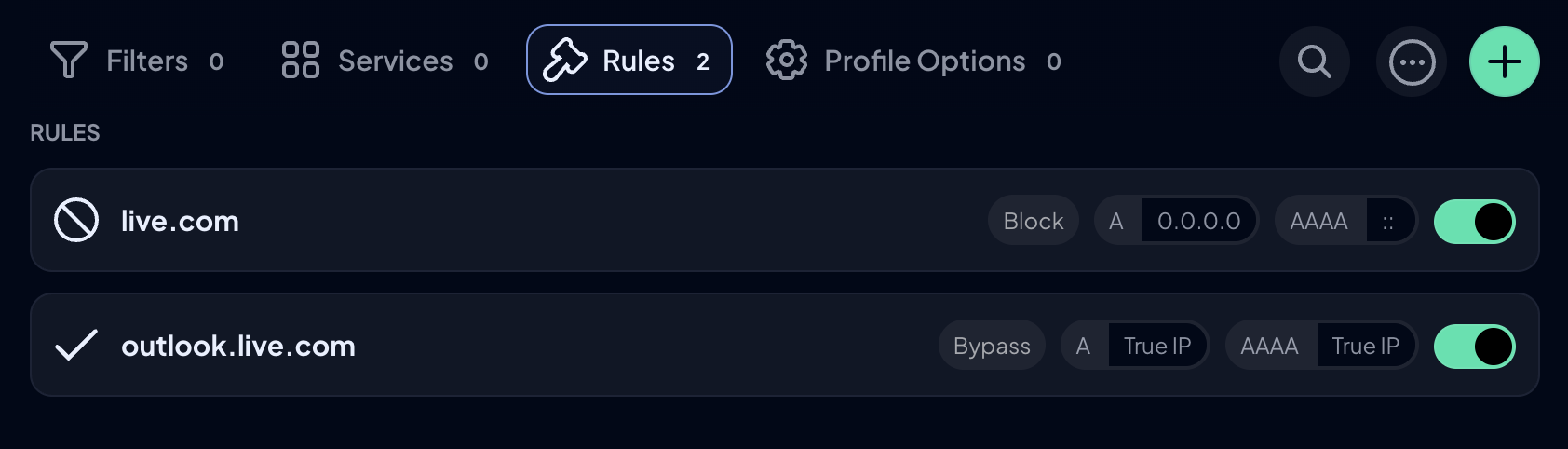
Creating a rule takes a single line: write or paste a domain (or list of domains), choose an action (block, bypass, or redirect), and click save. The rule applies immediately to any device or profile using that configuration.

Frequently Asked Questions (FAQ)
Can a DNS custom rule redirect a domain, not just block it?
Yes. Beyond blocking and allowing, a redirect rule returns an IP address or proxy location you choose instead of the domain's real one, so its traffic goes where you send it.
Are DNS custom rules the same as a hosts file?
Same idea, wider reach. A hosts file works on one device and has no wildcard support. DNS custom rules run at the resolver, support wildcards, and apply to every device you point at it.
Do DNS custom rules work across all my devices?
When the rules live on the DNS server your devices point at, every device following that configuration applies the same rules. You set it up once by pointing each device's DNS settings, or your whole router, at that alternative DNS service. The point of resolver-level rules is that they are not tied to one machine.
Are DNS custom rules part of DNS filtering?
Yes. DNS filtering is the broad capability of controlling what a resolver will answer. Custom rules are one part of that, the domain-by-domain control you define yourself, alongside prebuilt category filters and block lists. Filters handle the broad strokes; custom rules handle the specific exceptions and overrides.
How many DNS custom rules can I create?
Limits vary by provider. As one example, Control D for businesses supports unlimited custom rules, which is far past what a hosts file would handle.