CIPA Filtering Guide for Schools and Libraries
Learn how CIPA filtering works for schools and libraries that receive E-Rate funding. Build an internet safety policy, set a technology protection measure, reduce overblocking, and use Control D for compliant content filtering.

The Children's Internet Protection Act (CIPA) requires an internet safety policy and a filter that functions as a technology protection measure. That’s why CIPA filtering sits at the center of a lot of school and library internet safety work, especially if your school or library receives E-Rate funding for internet access, internet services, or internal connections.
To comply, you must block covered visual depictions while allowing authorized adults to bypass restrictions for lawful research. Here’s where it gets messy. Shared devices, student workarounds, and services that don’t behave like normal websites often defy simple rules.
This guide is for K-12 schools and public libraries looking for content filtering that works in practice. It focuses on the filtering program itself, not the full CIPA compliance checklist. For the full runbook, including providing reasonable public notice, a public hearing, Federal Communications Commission (FCC) forms, and long-term records, read our CIPA Compliance Checklist for Schools and Libraries.
What CIPA Filtering Needs to Do
If you’re a school or library administrator, you’ve likely dealt with CIPA to keep your E-rate funding. You had to show that your institution follows specific digital safety rules, including creating an internet safety policy that uses a technology protection measure.
This protection measure is essentially a filter that blocks specific types of visual content on your institution’s computers. The law requires your web filtering and content filtering rules to restrict access to the following:
- Visual depictions that are obscene.
- Any form of child pornography.
- Content that’s harmful to minors when they’re using the network.
While these filters must stay active for both adults and minors, the law provides some breathing room for staff. An authorized person can disable the filter for an adult who needs to conduct legitimate research or other lawful activities. This keeps the environment safe for students and doesn’t interfere with your team's necessary work.
Beyond the technical details, a comprehensive approach to CIPA-compliant filtering in K–12 schools often includes broader policy elements like:
- Educating minors on how to stay safe online.
- Monitoring their digital activities.
- Addressing concerns around unauthorized access or the disclosure of personal information.
Translate Your Internet Safety Policy into Filtering Rules
Many schools adopt internet safety policies that list topics tied to student safety, including direct electronic communications, email, chat rooms, and social networking websites. They often add guidance on online activities and appropriate online behavior, plus handling unauthorized disclosure and protecting minors’ personal information. This framing supports protecting children without treating every click as misconduct.
In light of this approach, your filtering program should reflect that policy language without turning into surveillance. Your rules should focus on inappropriate online content, inappropriate sites, inappropriate websites, and harmful websites that create risk for minors online, plus categories tied to obscene or harmful content and materials harmful to minors.
A practical mapping looks like this:
- Student Profiles: Content filtering focused on harmful online content, inappropriate content, and content harmful to minors categories.
- Staff Profiles: Web filtering that supports work and education, with a defined access path for lawful purposes and approved research.
- Guest and public terminals: Content filtering aligned to the school or library internet safety policy and local expectations for inappropriate material.
Tip: Use the same terms your policy uses. If your school's internet safety policy language mentions unauthorized disclosure or direct electronic communications, decide what your team will log, who can view it, and how it relates to student data protection.
Choose a Filtering Layer
Most schools and libraries use a mix of layers. The best fit depends on your device management maturity and the level of precision you need across major platforms.
Filtering can happen at different layers, and each layer changes what you can control, how hard it is to deploy, and what the filter can “see.” A Domain Name System (DNS) filter blocks entire domains. URL filtering blocks specific pages or paths inside a domain. Content filtering inspects what appears on a page, which is the most intrusive and hardest to run at scale.
For most schools and libraries, DNS filtering covers the bulk of day-to-day needs, and URL-level control is the next step when a platform needs narrower rules than “all or nothing.”
DNS Filtering
DNS-based web filtering blocks domain requests before a page loads. For many schools and libraries, it is the most practical way to meet CIPA requirements across many networks. It is often the backbone of filtering solutions, as it scales across many device types and locations. DNS filtering can effectively block internet access at the domain level, but it cannot inspect full URLs or page content inside HTTPS.
When a DNS filter blocks a domain, it stops the connection before the browser reaches the site. The resolver either returns an error (the browser acts like the site does not exist) or it redirects the user to a block page that explains why access was denied. That “stop it early” model is a big reason DNS filtering works well across mixed device fleets and limited IT staffing.
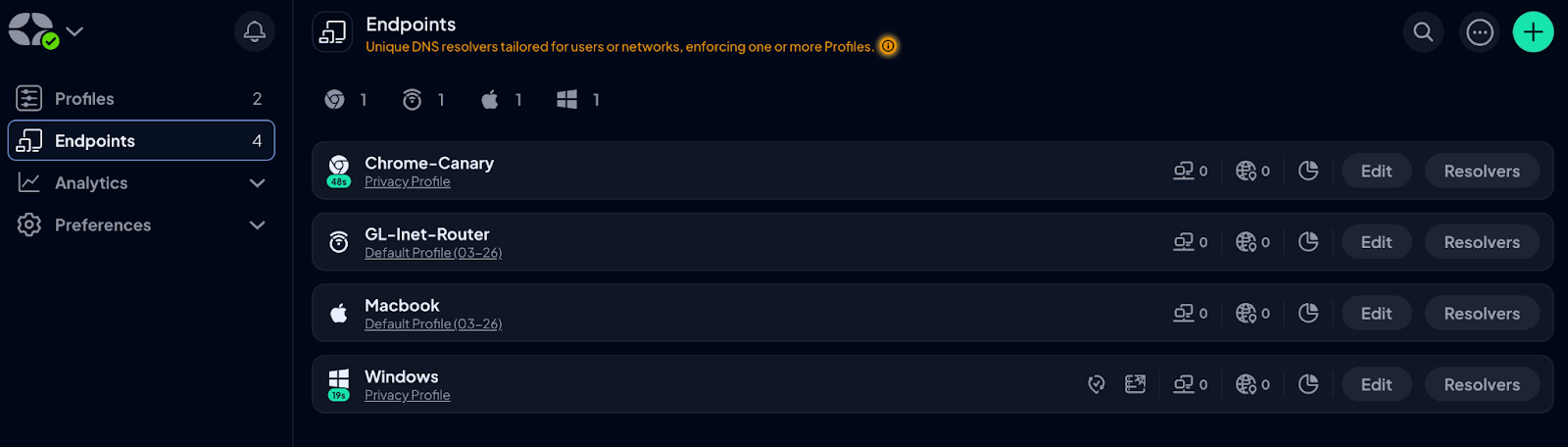
Control D enforces DNS filtering through Profiles (policy bundles) and Endpoints (device clients), so the same student and staff rules can apply on campus and on take-home devices.
Proxy or Secure Web Gateway
A proxy or secure web gateway can provide granular internet filtering, and it often ships as internet filtering software with reporting and policy controls, with higher complexity and infrastructure overhead. Many districts use it as a precision layer behind DNS.
Deep content inspection on modern sites runs into HTTPS encryption. To inspect page text, images, or downloads on HTTPS sites, a proxy has to decrypt traffic, inspect it, then re-encrypt it. That typically requires installing certificates on every device, plus it raises privacy concerns that many schools and libraries want to avoid.
That tradeoff is one reason many environments stick to DNS filtering, then add narrower controls only where instruction truly needs them.
Client-Based Controls and Browser Policy
Client tools and browser policy matter for take-home devices and common bypass paths, such as encrypted DNS settings in browsers. They support off-campus content filtering and can help lock down changes on managed student devices.
A common pattern in K-12 schools is a DNS baseline plus a browser policy that bypasses the routes you see most often.
Build Group Policies that Match Real Networks
The next point you have to keep in mind is that CIPA-compliant filtering breaks when you treat everyone the same. For group policies that work on real networks, start with distinct groups for a school or library:
- Elementary students, middle school, and high school.
- Staff and contractors.
- Guest Wi-Fi.
- Youth terminals in public libraries.
Then apply the filtering rules consistently across the school network, district networks, and remote use. This reduces surprise blocks and lets your team address concerns quickly when instruction breaks.
When you use Control D, you can create separate profiles for students, staff, and guests, then assign them by device or network so a single baseline can run across sites without consolidating everyone into a single rule set. If you need faster rollout, Control D supports Endpoint provisioning workflows (useful when you are deploying clients in bulk).
Adult Access and Exceptions Without Weakening Student Rules
CIPA recognizes adult research needs. The FCC notes that an authorized person may disable the blocking or filtering measure during use by an adult to enable access for bona fide research or other lawful purposes. Make that practical:
- Define approvers inside the administrative authority.
- Use time-boxed exceptions that revert automatically.
- Record the request and approval.
- Keep student Profiles unchanged.
With Control D, you can keep adult exceptions on staff Endpoints, then leave student Profiles untouched. This approach supports CIPA compliance without creating permanent loopholes.
How to Avoid Overblocking
Overblocking is the fastest way to lose trust in web filtering. It blocks legitimate instruction and drives workaround behavior, which can increase internet usage on unmanaged paths.
Avoid it with a repeatable process:
1. Pilot content filtering with a representative group.
2. Test against curriculum tools and library resources.
3. Fix false positives with narrow allow rules, not broad category changes.
4. Review allow rules each term and remove stale ones.
This keeps you aligned with an internet safety policy while avoiding blocking legitimate online behavior resources that teachers rely on, including safe resources on chat rooms and social networking sites.
Tip: Use Control D Dragonfly during triage to check categorization signals quickly, then resolve false positives with targeted Services or Custom Rules instead of loosening entire categories. For recurring classroom domains, you simply document the exception’s purpose and owner so it is easier to review later.
Plan for Bypass Attempts
A lot of modern platforms behave like apps, not tidy websites. Filtering may need to recognize service traffic patterns, not just a single domain name, so rules can cover the real thing students use (for example, a chat or social platform) rather than one obvious URL.
Control D’s advanced DNS filtering can block certain apps and services by recognizing traffic patterns, even when domains vary. Further actions that help:
- Lock down DNS settings on managed devices.
- Block known VPN and proxy services at the DNS layer.
- Use reporting to spot repeat attempts tied to one group or one site.
- On managed devices, set Control D “Prevent Deactivation” so removing the Endpoint requires a PIN, then pair that with your mobile device management policies.

These steps help reduce accessing harmful content through obvious bypass routes and cut down on harmful online content that slips through unmanaged paths.
Monitoring and Reporting that Supports Reviews
For K–12 schools, the internet safety policy must include monitoring the online activities of minors. That said, CIPA compliance expects the school or library to do so in a reasonable way.
Your internet safety policy can specify which online activities will trigger review and which are outside the program. In practice, that often means reviewing blocked-domain reports, exceptions, and high-risk patterns, not reading student messages.
Your reporting should answer:
- What online content was blocked?
- Which Profile and which rule triggered the block?
- When did the change occur?
- What exceptions were granted, and for what lawful use?
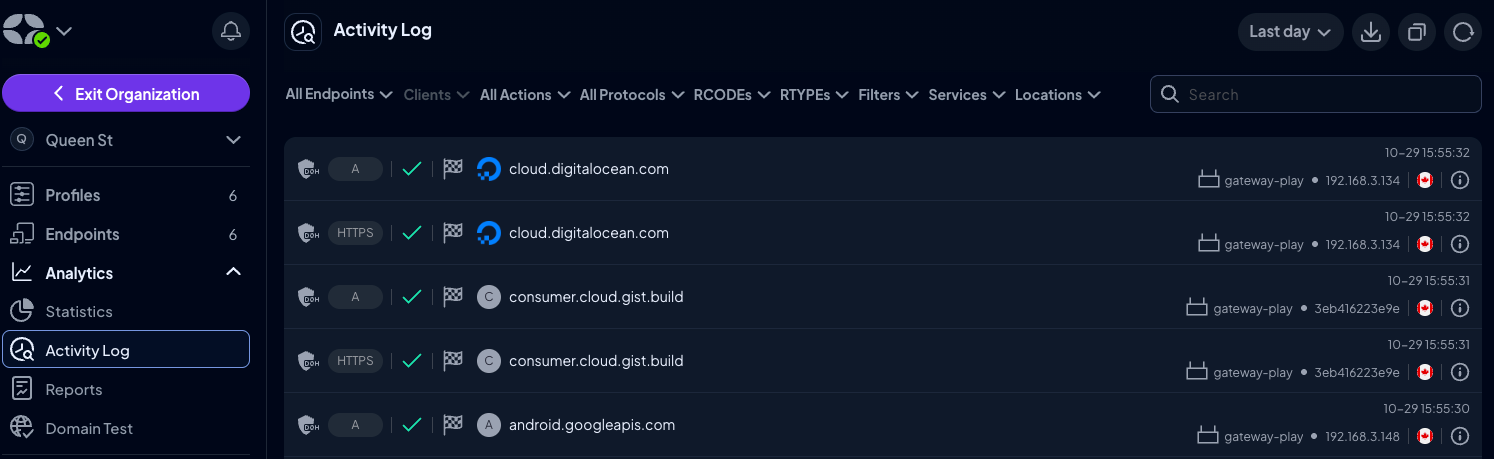
Keep reporting access limited, and document how it supports your safety policy and your student online activity review process. With Control D, you can use the Activity Log for day-to-day reviews, then export logs to CSV when you need to attach evidence to an internal report or an audit file. If your district uses a security information and event management (SIEM), Control D supports log streaming via Fluent Bit for select organization customers.
Control D Blueprint for CIPA-Compliant Filtering
Control D is a web filtering solution that supports policy-based DNS control for schools and libraries. Its CIPA guidance covers Safe Search, Restricted YouTube, and profile-based rules that map cleanly to a school or library internet safety policy.
Use Profiles to Separate Students, Staff, and Guests
Control D uses Profiles as policy bundles. This lets you keep content filtering aligned to your internet safety policy across the district network and remote devices when you assign Profiles through Control D Endpoints or network settings.
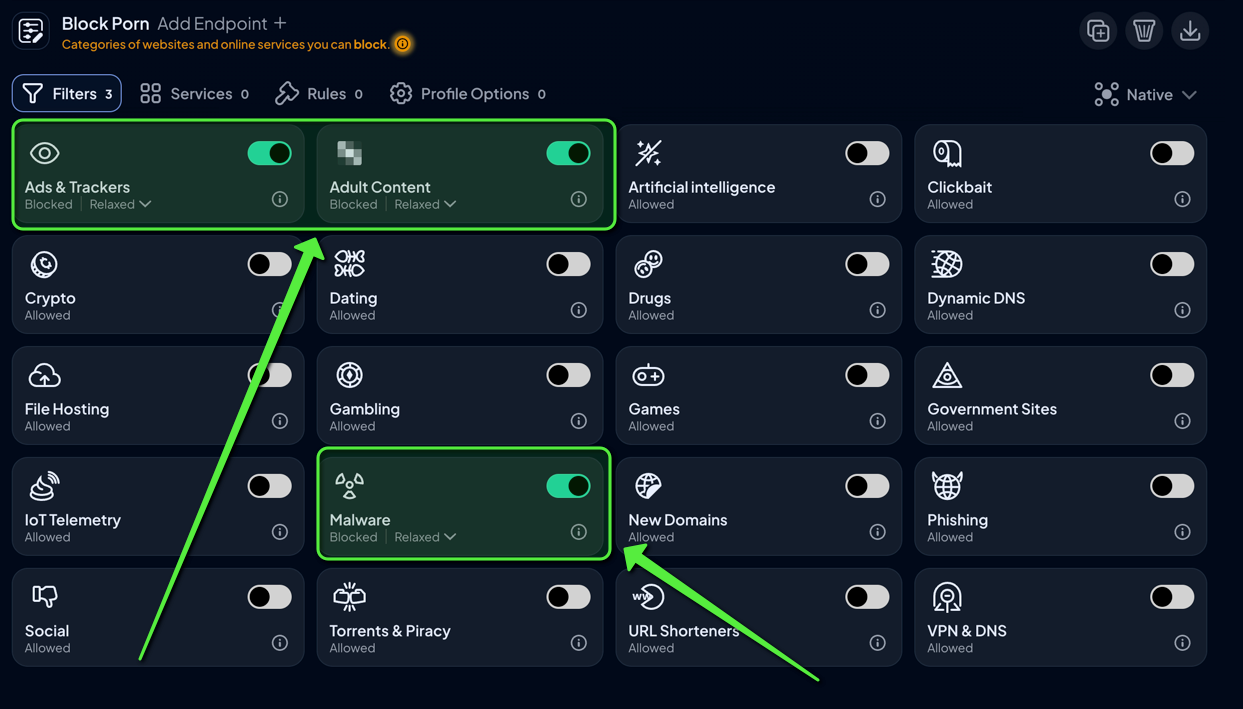
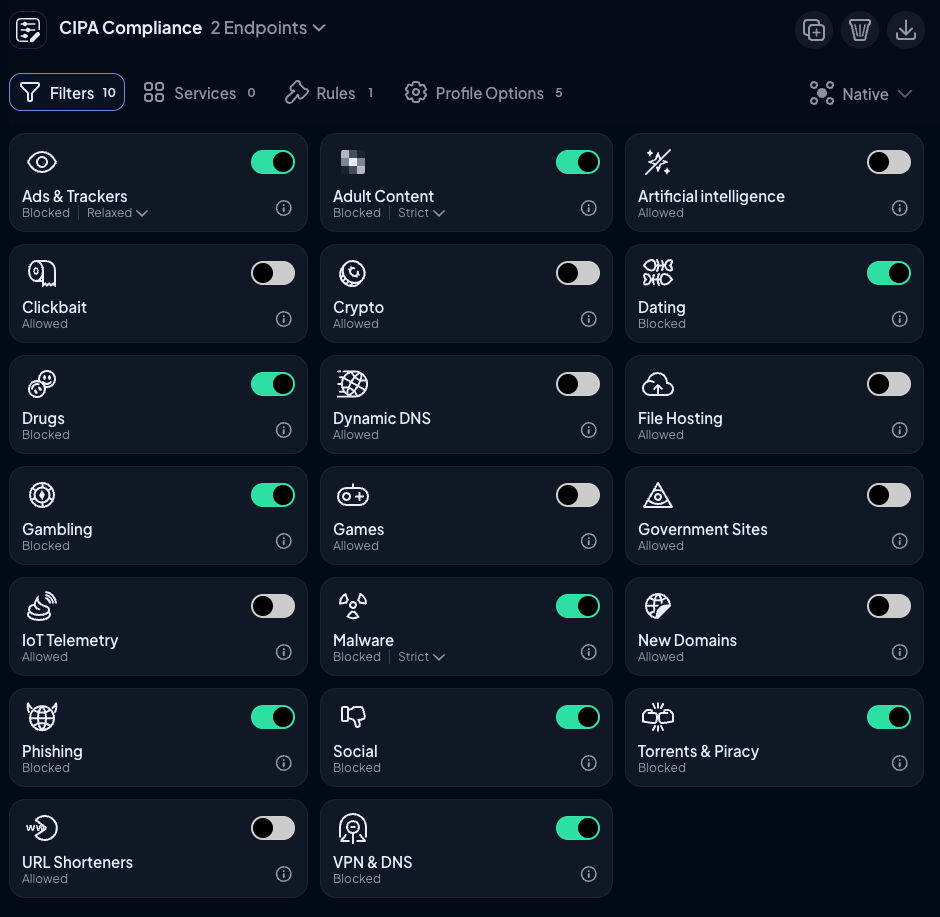
Profiles can combine Filters (categories), Services (site-level controls), Custom Rules (granular domain rules), and Profile Options in one place.
Apply Baseline Categories and then Add Precision
Use category filters for baseline protection, then use Services and Custom Rules for precision exceptions. This supports technology protection without weakening the baseline for protecting children and protecting students. Include an adult content category where your local policy calls for it.
Aim for a small number of exceptions. Too many exceptions make it harder to defend your internet safety policy.
Turn on Safe Search and Restricted YouTube for Students
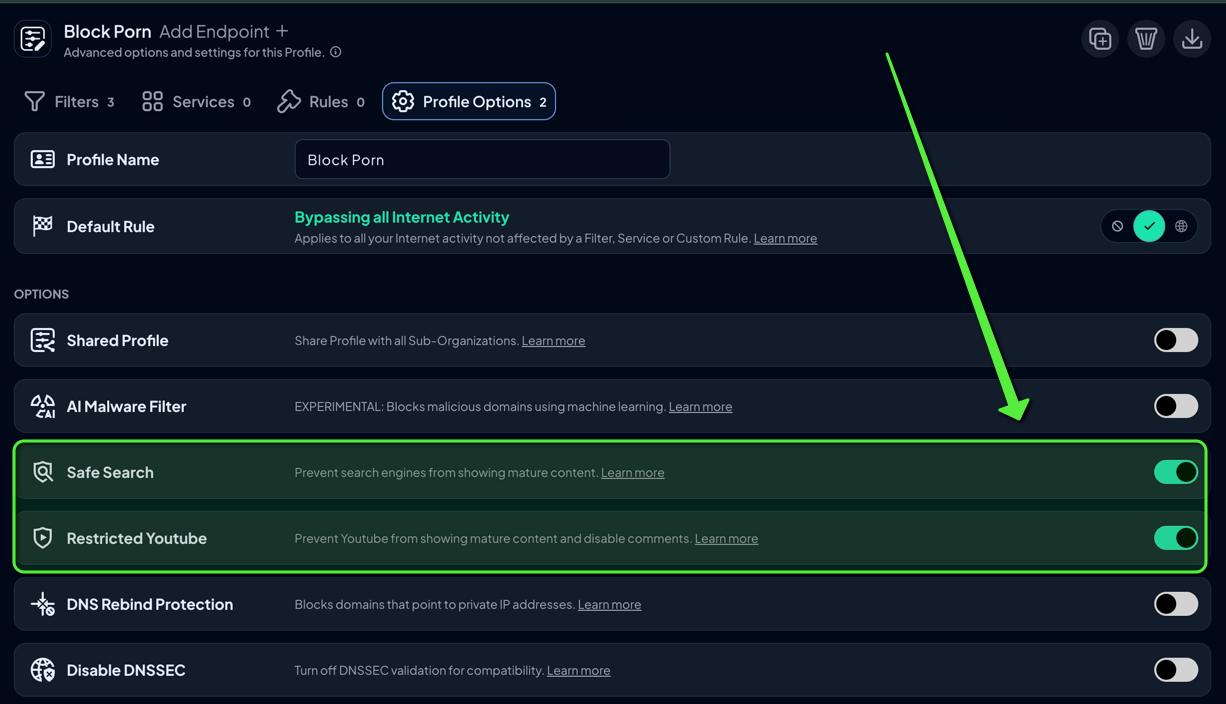
Control D Safe Search supports major search engines, and it blocks search engines that do not support Safe Search. Restricted YouTube forces YouTube into restricted mode.
These options support appropriate online behavior and expectations, especially when students share links in chat rooms and on social networking sites. For example, if YouTube is part of instruction, keep Restricted YouTube on in student Profiles, then handle staff access through staff Profiles rather than turning the control off system-wide.
Evaluate Domains Quickly During Triage
Control D Dragonfly helps teams review categorization signals during triage, reducing overblocking of legitimate web content used in class. Use it to decide whether to fix a false positive with a Service rule, a narrow allow rule, or a temporary exception tied to staff review.
Export Logs for Records
Control D includes an activity log view and CSV export, supporting internal reviews and audit response workflows. For long-term recordkeeping, set a simple cadence: export key logs at the end of each term, store them with the matching policy version, and restrict access to the smallest admin group.

Final Thoughts
CIPA filtering works best when policy, people, and tech line up. Write the policy in plain terms, map it to student, staff, and guest rules, then keep a documented adult access path that requires approval. Run a standing process to address false positives, with strict exceptions and regular cleanup.
Control D helps keep that program manageable. Profiles and Endpoints keep rules consistent on managed devices while Safe Search and Restricted YouTube tighten student browsing. Dragonfly speeds up category checks during triage, Activity Log exports support reviews and record files, and Prevent Deactivation adds a PIN step when someone tries to switch the client off. For teams with a SIEM, Control D offers log streaming via Fluent Bit in an alpha integration for select organization customers.
FAQs About CIPA Compliant Filtering
What are the requirements for CIPA compliance?
CIPA compliance for schools and libraries that receive E-rate funding generally includes an internet safety policy, a technology protection measure that can block access to covered visual depictions, and a public process that includes public notice and a public hearing or meeting. The administrative authority then files the required certifications, using other forms such as FCC Form 486 and FCC Form 479, and retains records tied to federal funding.
What is CIPA-compliant filtering?
CIPA-compliant filtering is the use of technology protection and settings that filter internet access and block access to obscene or harmful content and child pornography for adults and minors, plus content harmful to minors when minors use the computers online. It supports enabling access for bona fide research and other lawful purposes when an authorized person disables filtering during adult use.
Does DNS filtering meet CIPA needs?
DNS filtering can meet many CIPA requirements for content filtering. It blocks domain requests before content loads and can be applied across district networks and remote devices. Many schools and libraries pair DNS filtering with browser policy or endpoint controls to prevent encrypted DNS bypass and to limit precision on large platforms. Control D supports this pattern through DNS policies plus Endpoints that enforce Profiles on managed devices.
How do you avoid overblocking?
Start with stable baseline categories, test against curriculum and library resources, then fix false positives with narrow allow rules. Review exceptions and schedule rule approvals to ensure access remains aligned with the internet safety policy. This keeps web filtering effective without blocking appropriate online behavior resources.