
CIPA Compliance Checklist: A Practical Guide for Schools and Libraries
Learn how to comply with the children's internet protection act (CIPA) in this helpful step-by-step guide.

Congress enacted the Children’s Internet Protection Act (CIPA) to address concerns about children's access to obscene or harmful content on the internet and to set legal requirements for schools and libraries.
Schools and libraries subject to CIPA must certify that they have an internet filtering program in place in order to receive discounts under the E-rate initiative. The filtering measures must block things like pornography, malicious sites, and other content harmful for minors. If you receive E-rate funding, you submit certification through the E-rate program and keep records that show you comply with CIPA over time.
This guide explains CIPA requirements for schools and libraries that need a practical plan. It details internet safety policies, the public process, and content filtering across locations and devices.
You’ll also learn where domain name system (DNS) filtering fits, why it’s useful, and how Control D supports policy-based DNS filtering with reporting that’s easy to file.
Who CIPA Applies to, and What Triggers Compliance
CIPA applies when a funding program ties discounts to connectivity. For most schools and libraries, the E-rate program triggers this obligation. That means if you receive discounts for internet access, you must certify that you meet CIPA standards. This includes Category One connectivity and Category Two services like internal connections. The rule covers public schools, private schools, and public libraries.
Other federal funding might come with similar strings attached. If you aren’t sure, you should assume the law applies until you confirm your specific funding stream. Consider these administrative details as you decide on your next steps:
- The Administrative Authority handles the certification role.
- This entity usually files Federal Communications Commission (FCC) Form 486 or completes FCC Form 479 and sends them to the billed entity.
- You should keep each filing in your compliance folder as part of your permanent records.
- The mandate might not be necessary if your discounts apply only to telecommunications services.
Funding establishes the obligation. The following section clarifies exactly which entities fall under this mandate and defines the specific compliance measures required.
What CIPA Requires, in Plain Terms
While CIPA establishes the rules, the Universal Service Administrative Company (USAC) explains what you need to document to ensure compliance. The requirements break down into three main areas: policy, process, and protection. Think of this as a safety framework that requires clear internal rules, public input, and technical safeguards.
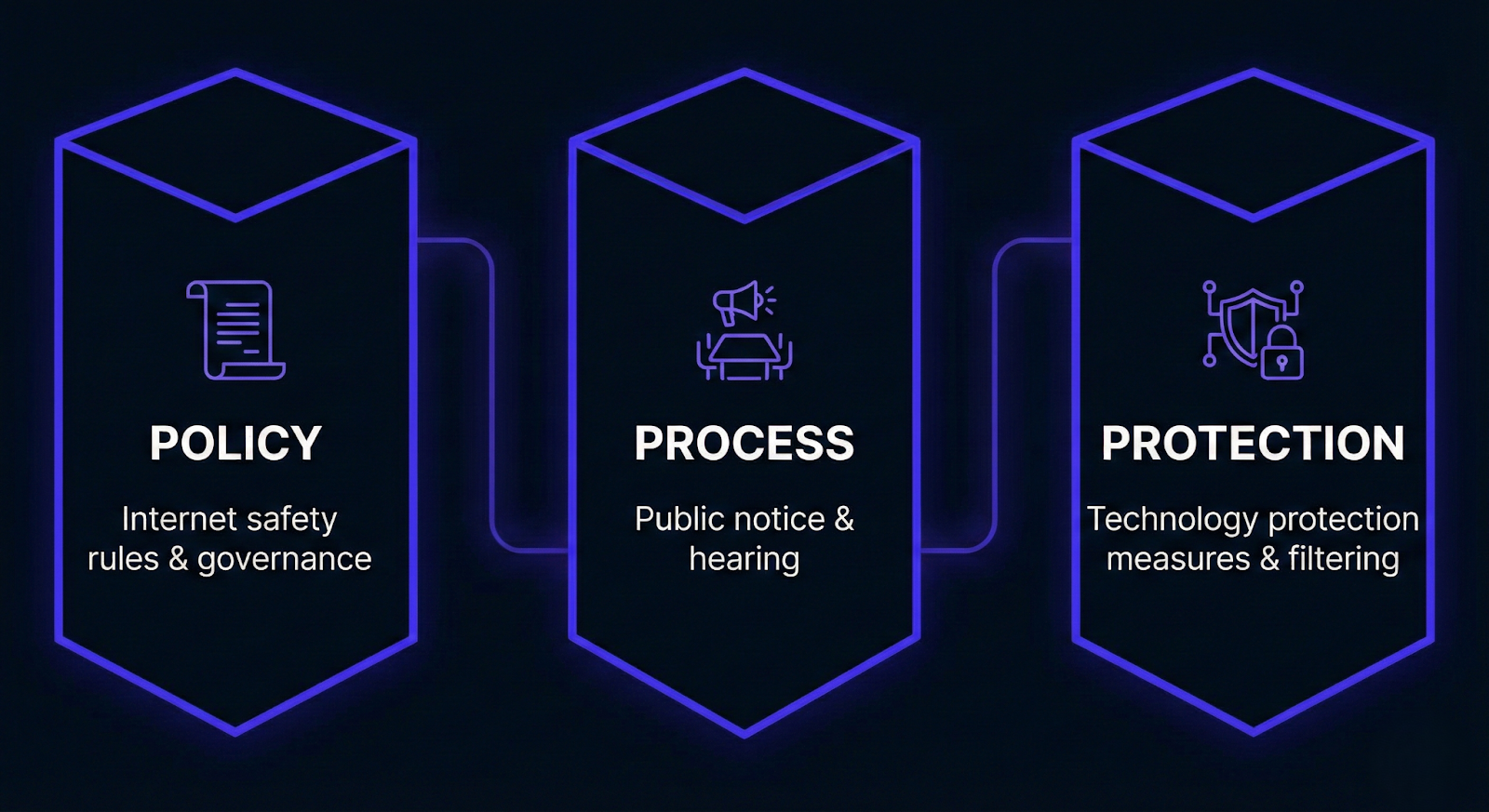
To comply, you must have these three components in place:
- An internet safety policy.
- A public process that includes public notice and a hearing.
- Technology protection measures that block or filter covered images.
The term “filtering control” connects the policy to the technology. This refers to the specific tool you use to block access to restricted or harmful material. Most schools and libraries handle this with content filtering at the DNS layer, on the device itself, through browser policies, or via a secure web gateway.
DNS filtering is a common choice because it’s easy to deploy across many locations. It stops requests to harmful domains before the page even loads. Control D operates at this layer, allowing you to manage rules by group or location and keep the records necessary for audits.
Once you have a handle on the definitions and the technology, you can start the actual work. The following sections outline the practical steps you need to take, starting with the rules you write and ending with the paperwork you file.
Step 1: Build Internet Safety Policies Staff Can Enforce
Internet safety policies are the backbone of CIPA compliance. They should read like rules staff can apply and explain, not a legal memo that sits untouched on a site. Many teams keep one policy for governance and one shorter internet safety policy that schools can use for staff onboarding.
What the Policy Must Cover
Under CIPA requirements, schools and libraries must adopt and enforce internet safety policies that include technology protection measures to protect against access to obscene and harmful content, child pornography, or, for minors, harmful to minors. Your policy should cover:
- Access by minors to inappropriate matter and inappropriate content on the internet.
- Security measures for minors using direct digital communications, including email and chat.
- Unauthorized online access and other unlawful activities by minors, including hacking.
- Unauthorized disclosure of minors’ personal information, including protecting minors’ personal information.
- Measures that restrict minors from accessing harmful internet content and materials harmful to minors.
Your policy should also note that your technology provider blocks Child Sexual Abuse Material (CSAM) automatically. Control D blocks CSAM at the network level and doesn’t collect or store personally identifying information, which aligns with student privacy needs.
That’s the compliance spine. Then make it practical: define what staff do when a student attempts to access harmful material, how incidents are reported, and which team owns the next step.
Monitoring and Online Activities
CIPA ties internet safety policies to monitoring the online activities of minors. Write this section with care. Monitoring can mean reviewing filter reports, incident logs, and alerts. It doesn’t need to read as surveillance of every message; a practical approach:
- Defines what monitoring covers for minors online, and what it doesn’t cover.
- Limits reporting access to roles inside the Administrative Authority.
- Keeps only what you need to address concerns, investigate unlawful activities, and support reviews.
Control D can support this with DNS activity reports that show when your content filtering rules blocked harmful online content, without requiring staff to inspect student communications.
School-Only Training: Educating Minors About Online Behavior
For K-12 schools, CIPA requires educating minors about appropriate online behavior. That includes interactions on social networking websites and in chat rooms, plus awareness of cyberbullying and how to report it. Here you’re well advised to keep it simple:
- Set a grade-banded plan for appropriate online behavior.
- Store lesson materials and completion evidence.
- Tie the lesson topics back to behavior expectations in your policies.
This supports protecting students and safeguarding minors in daily operations, not just on paper.
Step 2: Provide Public Notice and Hold a Meeting
Before you adopt or materially change your policy, you must complete a specific public process. The responsible authority needs to provide reasonable public notice, keep proof of that notice, and hold at least one public hearing to address the proposed internet safety policies and filtering approach.
What Notice Looks Like
Use your standard governance channels. Post the agenda and the proposed policy, and save a copy of the actual notice. Then file the minutes confirming that the discussion took place.
CIPA refers to an “appropriate constituent group.” This means your stakeholders should reflect your actual community: IT staff, instructors, library services, administration, and family or patron voices. If the school board handles the meeting, simply note that in the minutes.
What to Save
Retain these artifacts with your E-rate program records:
- The meeting notice and a copy of the public notice.
- The agenda and the draft policy.
- Minutes or a recording of the public hearing.
- The adopted policy with its effective date.
This paperwork might seem mundane, but it’s also the exact documentation that tends to vanish five years later, right when an auditor asks to see it.
Step 3: Put Filtering Controls in Place
This step covers the technical core. You must deploy a technology protection measure, such as internet filtering software or hardware, to enforce your safety policy. Your filtering system must:
- Block obscenity and child pornography for all users.
- Block content considered harmful to minors when minors are using the network.
- Remain active whenever minors are online.
We understand that it sounds broad, so the best advice is to translate it into filtering settings you can check: category blocks, custom domain blocks, and a controlled exception process.
DNS Filtering and Internet Filtering
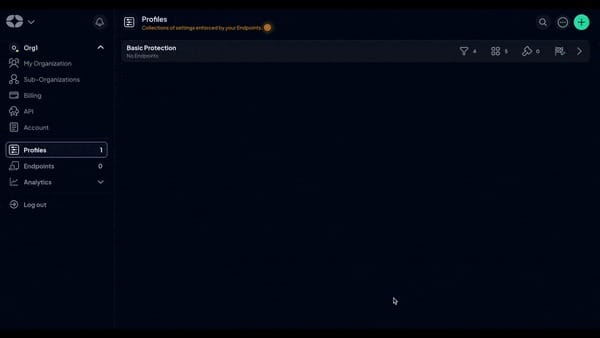
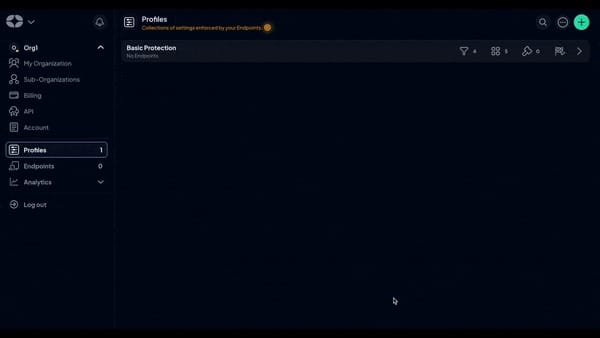
DNS filtering is one approach to internet filtering. Control D gives you specific toggles that map directly to CIPA categories. To meet the standard, you should enable:
- Adult Content (Strict): Blocks pornographic sites and adult-themed content.
- Restricted YouTube: Forces YouTube into restricted mode, removing mature content and comments.
- Safe Search: Filters NSFW results on all compatible search engines. If a search engine lacks Safe Search support, Control D blocks access to it entirely. You can activate this setting directly within your Profile Options.
- Malware Filter (Strict): Blocks malicious domains and botnets to protect the network.
CIPA requires you to address “unauthorized access.” Students often use VPNs or alternative DNS providers to bypass school filters. You can enable the VPN & DNS filter in Control D to block known VPN providers and proxies. For harder-to-block apps, consider redirecting all UDP 53 traffic on your firewall to Control D.
Tool for the Admin: Verify Your Categories – CIPA compliance often involves judgment calls. When you need to decide if a site should be blocked or allowed, you can use Control D’s Dragonfly tool. It acts as a domain microscope, showing you exactly how a domain is categorized and why (based on DNS, TLS, and content). If you find a misclassified educational site, you can report it directly through the tool to improve the filter for everyone.
Limits You Should Plan Around
DNS filtering blocks domains and services, but it doesn’t inspect everything inside HTTPS pages. On large platforms, this can limit how precisely you can block a single item without blocking the whole service. If you need that precision, pair DNS filtering with browser policy or endpoint controls.
Step 4: Adult Exceptions For Bona Fide Research and Lawful Purposes
CIPA recognizes that adults have different needs. An authorized administrator or supervisor can disable the filter for an adult user to allow for bona fide research or other lawful purposes. You need a clear workflow to handle these requests:
- Identify the approvers and clearly define which staff members have the authority to unlock the filter.
- Specify exactly what qualifies as legitimate research or a lawful purpose.
- Set a strict time limit for the exception and log the event.
Your staff should be able to follow this process quickly, without guessing. Control D lets you apply temporary rule changes to an adult group and automatically revert to your baseline protections.
Step 5: Deploy Content Filtering Across Real Networks
Compliance often breaks down in the gap between policy and the real world. Plus, internet usage isn't static. Students switch between campus and home, patrons visit different branches, and guest networks are now standard. To address this, here’s a rollout approach that actually holds up:
- Configure separate network-wide content filtering for students, staff, and guests. DNS filtering offers a quick win here: you get one set of rules per group, applied consistently across your network. You can also use service blocks to cut off distractions like video games or social networking sites during school hours, while leaving them open for staff or after-hours use.
- If students take managed devices home, your compliance risk travels with them. Use device policies to maintain consistent filtering off-site. Combining DNS rules with your mobile device management policy ensures continuity.
- Libraries must balance protecting children with supporting adult access. Keep strict controls on youth terminals and Wi-Fi, and rely on the exception workflow you defined in Step 4 for adult users.
Step 6: File Certifications and Keep Proof
The Administrative Authority certifies E-rate compliance. Most teams handle multiple filings in a cycle, so make this a standard part of your routine. First, confirm who is responsible for filing FCC Form 486 and who must provide FCC Form 479.
Once the forms are filed, maintain a complete record set. Your compliance folder should hold the filed forms, the safety policy, your meeting records, and proof that your filtering controls are active.
When CIPA Doesn’t Apply
According to USAC, you may be able to certify that CIPA doesn’t apply if your discounts are tied exclusively to telecommunications services. If you take this position, make sure you keep documentation that clearly supports it.
Step 7: Keep Records for 10 Years
The E-rate program requires a long memory. You must keep your CIPA folder for 10 years, and your archive should include:
- Internet safety policies (every version and adoption date).
- Meeting records and public notice artifacts.
- Snapshots of your filtering configuration.
- Content filtering reports and exception logs.
- Materials used to educate minors and evidence that they completed the training.
- Each FCC filing and related correspondence.
A light routine can help you stay organized. Once per semester, export a snapshot of your content filtering categories and your custom block list, then store it with the current date.
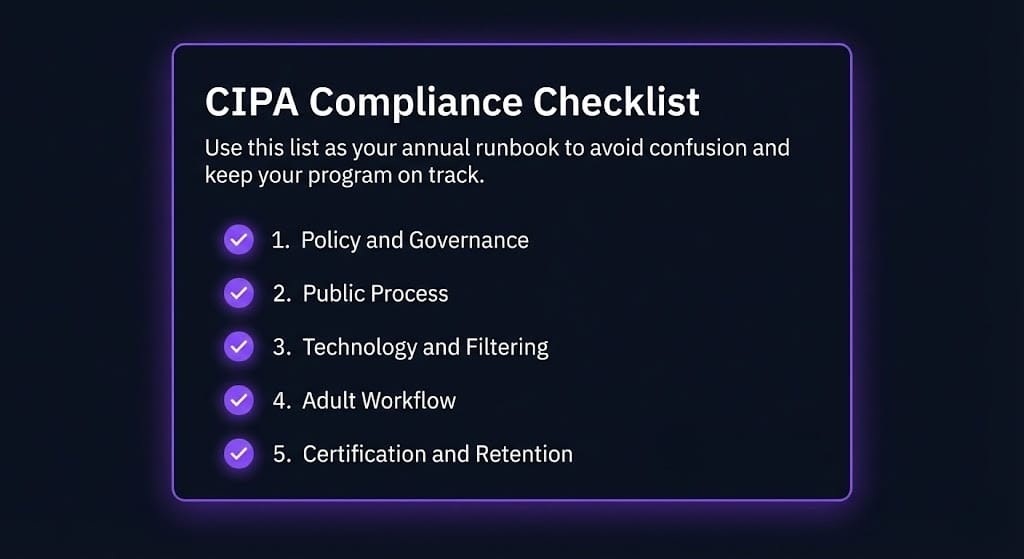
CIPA Compliance Checklist
Use this list as your annual runbook to avoid confusion and keep your program on track.
Policy and Governance
- Maintain internet safety policies and verify that they specifically address technology protection measures.
- Confirm the policy includes monitoring of online activities.
- Verify coverage for chat rooms, electronic mail, direct electronic communications, and inappropriate online content.
- Check that the policy addresses unauthorized access, unauthorized disclosure, and other unlawful activities.
Public Process
- Provide public notice and save a copy of it.
- Hold a public meeting and record how you addressed concerns.
- Keep minutes that reflect your stakeholder mix and their input.
Technology and Filtering
- Validate your technology protection measures and verify that filtering settings are enforced on student networks.
- Check that content filtering effectively blocks harmful content, child pornography, and materials harmful to minors.
- Verify that your controls block access when rules trigger, and keep reports that prove it worked.
Adult Workflow
- Document the workflow that allows access for bona fide research and other lawful purposes.
- Confirm that authorized personnel can approve and time-box these exceptions.
Certification and Retention
- Confirm the Administrative Authority can complete each FCC filing used for the E-rate program.
- Verify that you receive E-rate funding only for the services you intend.
- Maintain all records for the mandatory 10-year period.
Common Mistakes That Slow CIPA Compliance
Most compliance issues don’t come from ignoring the law, but from losing track of the daily routine. Avoid these familiar traps:
- Static Policies: Writing safety policies once and forgetting to revisit them when web usage changes. Use tools like Dragonfly to spot-check domains and submit re-categorization requests so your filter evolves along with the web.
- Set-and-Forget Filtering: Treating content filtering as a one-time setup rather than an operational program that supports both minors and adult research.
- Missing Records: Skipping the documentation for public meetings, then scrambling to reconstruct the notice trail later.
- No Proof: Being unable to show evidence of compliance when asked, even though the controls were technically in place.
FAQs about CIPA Compliance
What does being CIPA compliant mean?
Being Children's Internet Protection Act (CIPA) compliant means your schools and libraries have internet safety policies in place, you provide public notice and hold a public meeting, and you use technology protection measures to block or filter covered material, with documentation that supports your E-rate certifications. Meeting these standards is a prerequisite to securing E-rate funding for your telecommunications and information services.
Who requires CIPA compliance?
CIPA compliance is tied to federal funding conditions for E-rate. The FCC sets the rules, and USAC runs the process where schools and libraries file the forms that support discounts for internet access. CIPA is enforced through the funding certification process.
What’s the CIPA compliance rule?
The rule is that schools and libraries must comply with CIPA by adopting and enforcing internet safety policies, completing the public process, and using filtering controls that block covered visual depictions and harmful online content for minors.
What institutions must comply with CIPA?
The law applies to schools and libraries that receive E-rate funding for connectivity or network connections, including district schools, private schools, and eligible libraries that receive E-rate support.